
Set up with a prompt
Paste this into your AI chat.
Help me connect Inku in this AI client. Reuse a working Inku connection if one exists. Otherwise, add Inku as a remote MCP server at https://inkujapanese.com/api/mcp. If I need to add it myself, give me the exact steps for this client.

Let me sign in to Inku and approve read access in my browser. Keep my credentials out of chat.

When the tools are ready, check my profile with inku_get_profile and use inku_search_cards to look up きっぷ in the Inku catalog. Show me the reading and meaning returned by Inku. Use only read tools and leave my library unchanged. If a check fails, tell me the first step I need to finish.
Connect manually
You need an Inku account with active Pro access and an AI client that supports remote MCP. An active Inku trial or complimentary Pro works too.
- Add Inku in your AI client.
Open the client’s connector settings. Add a custom remote MCP server named Inku and enter this URL.
https://inkujapanese.com/api/mcp - Sign in and review permissions.
Follow the sign-in link from your client. Review the requested access in Inku. If you see Allow changes, turn it off for this lookup before selecting Connect.
- Open a chat with Inku enabled.
Return to your AI client. If it asks you to enable the connector in the chat or start a new chat, do that before the lookup.
Use the Codex CLI
codex mcp add inku --url https://inkujapanese.com/api/mcpIf you still need to sign in, run codex mcp login inku. Complete sign-in in your browser, then open a new Codex session.
Try your first lookup
Use Inku to look up きっぷ and show me its reading and meaning.
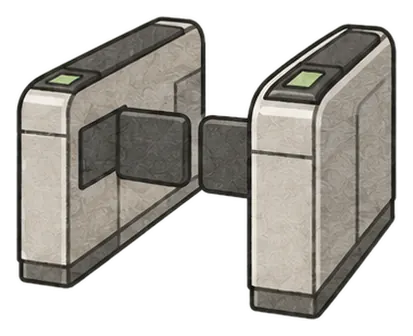
Ask your agent to confirm it found the card in Inku. This check leaves your library and study progress unchanged.
Manage access
Open API keys in your Inku Profile to disconnect an AI app or revoke an API key.
If your client uses a custom authorization header, create a Read key and enter it in the client’s secure settings using Authorization: Bearer <your key>. Keep keys and passwords out of chat.